
Cockatrice is a cross-platform Open Source card game program that runs on Windows, Linux, and Mac, thanks to the work of developers Max-Wilhelm, Marcus Schütz, and Marius van Zundert. Among other things, it allows you to fine-tune and test a deck in single-player mode. By its nature, it is public and free, implementing everything that the old MWS, which has been stagnant for years, lacks. We will try to explain some of Cockatrice's most interesting features to help you install and configure the program.
Installation
1. On the website cockatrice.github.io, after reading how the project works, you can download the Win, Mac, or Linux executable.
2. Install it by following the instructions. It's very easy! For Mac users, once installed, you should have a folder in your applications.
3. Once the installation is complete, run it, and the program will automatically prompt you to download the database of the game you are interested in via the dedicated Oracle software:

At this point, choose your desired interface language for the program and where you want to download the data from:

Once finished, the program will load the downloaded database, allowing you to choose which sets to use and which not to use for building your decks:

NB: To switch the program to the Italian interface, it is necessary to restart it.
4. Opening Cockatrice. When you open the program, you will see a blank screen with which you cannot do much. It should look very similar to the picture below:

Boring, huh? Don't worry! In the menu bar, you will see 2 menus (for Mac users, both are called Cockatrice, I hope they have corrected it).

The first thing you'll want to do is change the game preferences. To do this, go to Cockatrice (the one in bold) and then to the Preferences submenu. There you can choose from many different options. My favorite, and it is definitely a must-have, is called "Download card pictures on the fly." This is one of the best features, as it allows you to automatically download cards while you are playing. You won't have to download all card images as you used to do with MWS. Now this is an automatic operation.
The preferences screen should look like this:

You can customize your personal messages, or even add a different playmat for the battlefield if you prefer.
5. Creating a deck: Before playing any games, you need to have some decks to play with. To do this, you will need to take the following action: go to Cockatrice (the one not in bold) and then the Deck Editor submenu. All your decks are automatically cataloged in the Decks folder.
The deck editor function allows you to create any deck and modify it later at any time. Once opened, it should appear completely empty:

To add cards manually, you can use the search box, which will dynamically search for the card you are looking for as you type it. Pressing "Enter" will add the selected card to the deck, and pressing "CTRL" (or Command on Mac) + Enter will add it to the sideboard. There are editor functions that also allow you to modify your decks by adding, reducing, or deleting cards from them. The deck editor works great and you won't need more than 5 minutes to create your deck.
This is an example of my deck:


Once your deck is ready, go to the menu and save it. As you can see, there is a shortcut for each function. Get used to using these shortcuts as they will greatly speed up your approach to the software, especially during gameplay.
Once the decks are ready, it's time to connect and start playing.
6. Connecting to the server. The server currently used by the community is the default one that will be offered to you: Rooster Range (server.cockatrice.us). You can use or create your own personal server if you wish, or play a local test game against the wall (this method is useful for quickly seeing some opening hands).
Compared to versions from a few years ago, it is necessary to register with our user before being able to connect to the default server or any other. In the main menu, we will then go to the "Register on server..." item:

Then duly fill in all the required fields:

Once we receive the confirmation email, we can proceed to connect with our new account by clicking on Connect...

Enter your username and password and you will find yourself in the main room of the server.
By going to account, you will have access to your profile:

Take some time to familiarize yourself with the interface. The window on the right contains the list of users. Here you can see who is online and you can talk to them via chat (double click on the name). The box at the top is where open games appear after they have been created. One of the best features of Cockatrice is the ability to watch a game as a spectator. For this, the first thing you need to do is check the "Show full games" box.

Now you will be able to see all games:

When you participate in a game as a spectator, you can talk to the players if they have enabled spectator chat. Sometimes players set a password because they don't want to reveal their super secret tactics!

In the lower right part of the screen at the top, you will find the buttons that will allow you to create, join, or join as a spectator to a game.

Let's create our own game to start the fun!
This is the screen you will see after pressing the "Create" button. Set the game description, add a password if you want, the number of players (Two-Headed Giant mode is allowed), and click to modify spectator settings.
Please note: if you are privacy-conscious, you can also add a password that spectators will need to enter to participate. This way, only trusted people to whom you have given the password will be able to interact.
Once you have everything set up, a new screen should appear. This is where your deck preview will appear:

In the top left, you will still find three buttons: Load Local Deck / Load Deck from Server / Ready to start. You cannot start without a deck, so you must load one you have created previously.
*Note: Nice deck, isn't it??
How can we load a deck from the server? Cockatrice allows you to upload decks to a server so you can play with your decks wherever you are. This is a fantastic feature! At the top of the screen, you will see several tabs, one of which is the deck collection.


To upload a deck to the server, simply press the "Deck storage" button. Then a new screen will appear. On the left are your local decks, while on the right are your decks uploaded to the server. Use the buttons below to move or delete decks, create folders, modify, etc...


After creating a game and loading a deck, what are we missing? Finding friends! You can convince an MSN friend to stop hitting on girls and come play with you, or you can wait for a random player to join your game. When both players have pressed the "Ready to start" button, the game will begin!
7. Playing a game. A new screen will appear. This screen simulates the battlefield and contains all the necessary tools for playing online games.
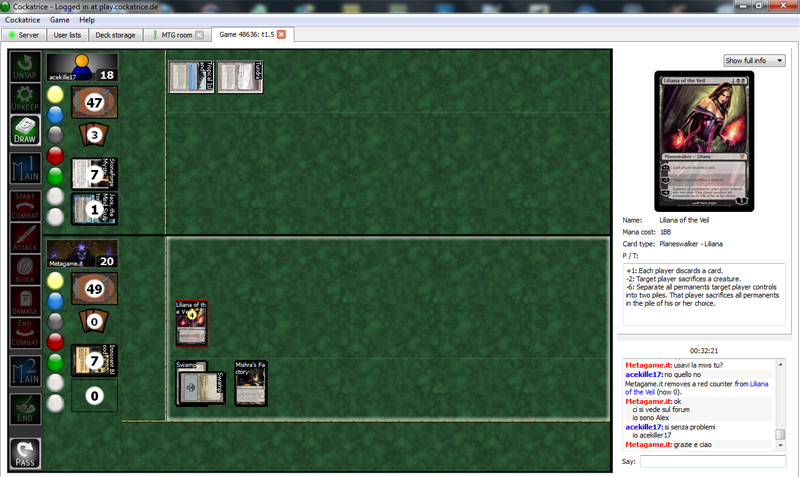
The screen is divided horizontally. We represent the player who controls the bottom part. The play areas are divided into:
- The green area is our hand.
- The blue area is the battlefield. This is further divided into a lower part where lands will go if we play them from our hand by double-clicking on them, while the upper part is where all permanents end up.
- The red area on the left is the stack.

On the far left, there is a bar with all the game phases.
*Note: some people, to drastically speed up the game, don't change the game phase every time, leaving it always on "Untap." In these cases, do many things as if you were playing in real life. Use the chat to send your messages by configuring shortcuts.
Then, between the phase bar and the play area, you will find some buttons with symbols, your life points, and (in order from top to bottom) the library, graveyard, exiled cards, and the number of cards you have in hand.
On the right side of the screen, you have a card preview (hover your mouse over a card), then a small box containing players, spectators, and finally a list of all moves made with an integrated chat. This last element is very useful because it allows you to check all your opponent's moves and, if necessary, stop them by warning them via chat if they are doing something wrong. Directly below the game screen, you will find the chat where you can talk about anything you want.
This is a list of all the most commonly used shortcuts:

CTRL or COMMAND +
+ i = Roll the die;
+ s = Shuffle deck;
+ d = Draw a card;
+ e = Draw more than one card;
+ m = Draw 7 cards or mulligan;
+ w = Look at the top X cards of your deck;
+ u = Untap all your permanents;
+ t = Create a token;
+ a = Attach to a card (Equipment);
+ r = Remove all created arrows (see below);
To conclude:
F2 to concede the game
F3 to look at your deck
*Note: you can sort your deck by name or you can type the first characters to speed up the search
F4 to look at your graveyard
If you have added specific messages like "End of turn," "Go," "In response," etc... These messages can be assigned to hotkeys like CTRL or Command + 1,2,3,4,....
What else you need to know
Game Arrows
You can create game arrows to better highlight something, such as blocking creatures or spell targets. To create an arrow (like the one in the figure), you need to right-click from the main card to the desired target.

Library Options
Some options are complicated, for example: "How can I show my opponent the top card of my library while they are using Jace 2.0 on me?". For this reason, if you right-click on the Library icon, you will have many alternatives available, including "Reveal top card to..."

Changing total life points and counters
Right-click on the circular total life counter or on the colored circular counters to add a +1,
Left-click on the circular total life counter or on the colored circular counters to add a -1,
The white counter at the bottom is the Storm ability counter.
Finally, if there are things you haven't understood, you can find most of the game options within the Game Menu on the top menu bar. Remember that you can also ask your opponent for help!
That's all. I hope you have as much fun with Cockatrice as we are having now. The game can only improve further thanks to the magnificent work done so far.
If you find any bugs or have any comments, please contact the Cockatrice staff or leave a message on the forum, which you can find at www.woogerworks.com.
Useful Links
- Cockatrice Italia - OFFICIAL GROUP - For Facebook support
- Github.com/Cockatrice/Cockatrice/wiki/Public-Servers - To check server STATUS in case of connection problems
- The discussion area dedicated to Cockatrice on our Forum: DIGITAL MAGIC > COCKATRICE